Troubleshooting guide
Peeking into Darkwrite’s data
Section titled “Peeking into Darkwrite’s data”Darkwrite stores your data in the app data storage folder designated by your operating system. These folders vary as such:
| OS | App data directory |
|---|---|
| Windows | %LOCALAPPDATA%, usually C:\Users\your-username\AppData\Roaming |
| Linux | $XDG_CONFIG_HOME, usually ~/.config |
| macOS | ~/Library/Application Support |
Darkwrite puts its data into the Darkwrite subdirectory on the folders listed in the table.
Easy access to data directory
Section titled “Easy access to data directory”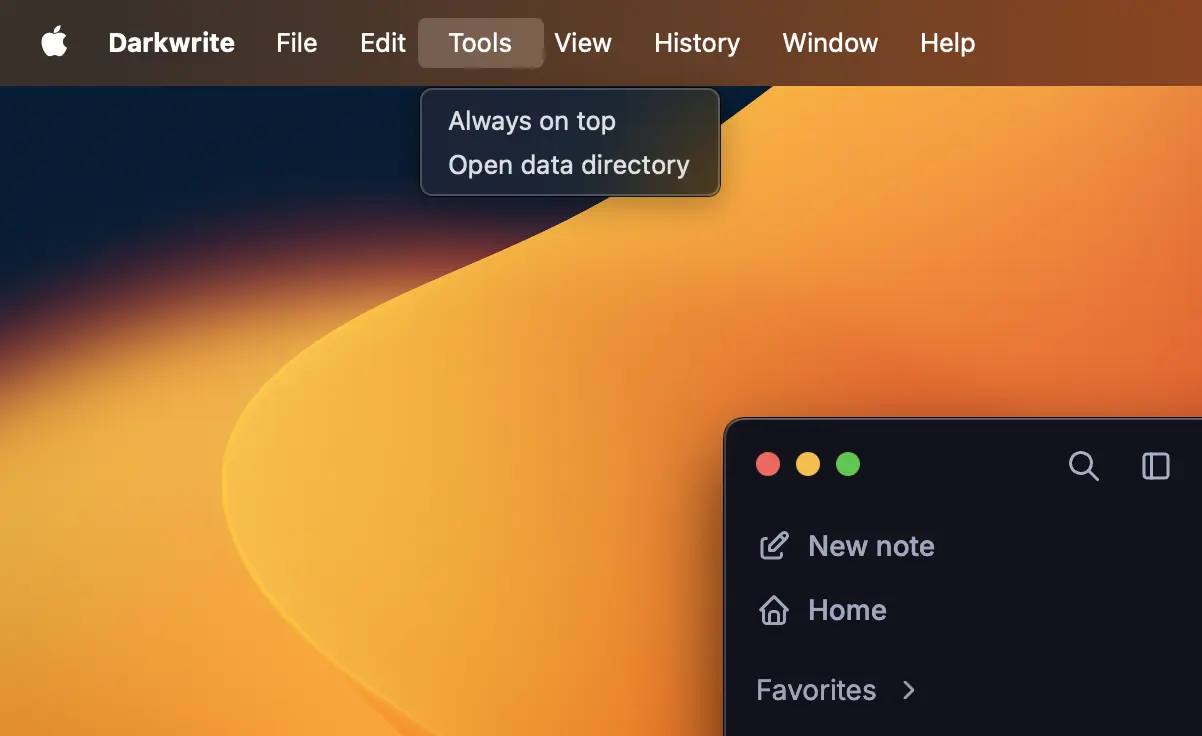
If Darkwrite isn’t in a corrupt state and is able to launch, you can easily open the data directory from inside the application. Choose Tools > Open data directory from the menu bar and a file manager window to that folder will appear.
If you are on Windows or Linux, you can access the menu items by clicking the Darkwrite icon on the top left of the window.
Folder structure
Section titled “Folder structure”If you got into the Darkwrite data folder, you’ll see many folders such as “Cache”, “Code Cache”, “logs”, etc. The only ones you should care about are logs and darkwrite-data, and if you are running development builds, darkwrite-data-nightly.
Troubleshooting migration errors
Section titled “Troubleshooting migration errors”If you saw a “Migration failed” popup when launching the app, this means something is wrong with the SQLite database that stores your workspace metadata.
To determine what is wrong, navigate to the data folder as explained in the previous section. Open the logs folder, and copy the migration.log file to your desktop/somewhere easily accessible.
Then head over to our bug tracker, and create an issue with the migration.log file attached.
To get back to work, first make sure Darkwrite is fully closed (If you are on macOS, hit ⌘Q to quit fully). Back in the data folder, open darkwrite-data. You will see 2 files:
- darkwrite.db
- snapshot-<timestamp>.db such as snapshot-1787527246945.db
The snapshot file is a copy of darkwrite.db before we attempt to migrate it. We normally delete it when migrations succeed, but we leave it there in case of failure so it can be recovered manually.
In order:
- Copy
darkwrite.dbto your desktop, so we have a snapshot of the broken state - Delete
darkwrite.dbfrom the data folder - Rename the snapshot file to
darkwrite.db - Go to our releases page, and download the release you previously had installed. Run the installer to downgrade the app.
- You can get back to work by launching the old version. Don’t update until we release a fix.